
 Tabsly
Shopify product tabs for specs, manuals and FAQs
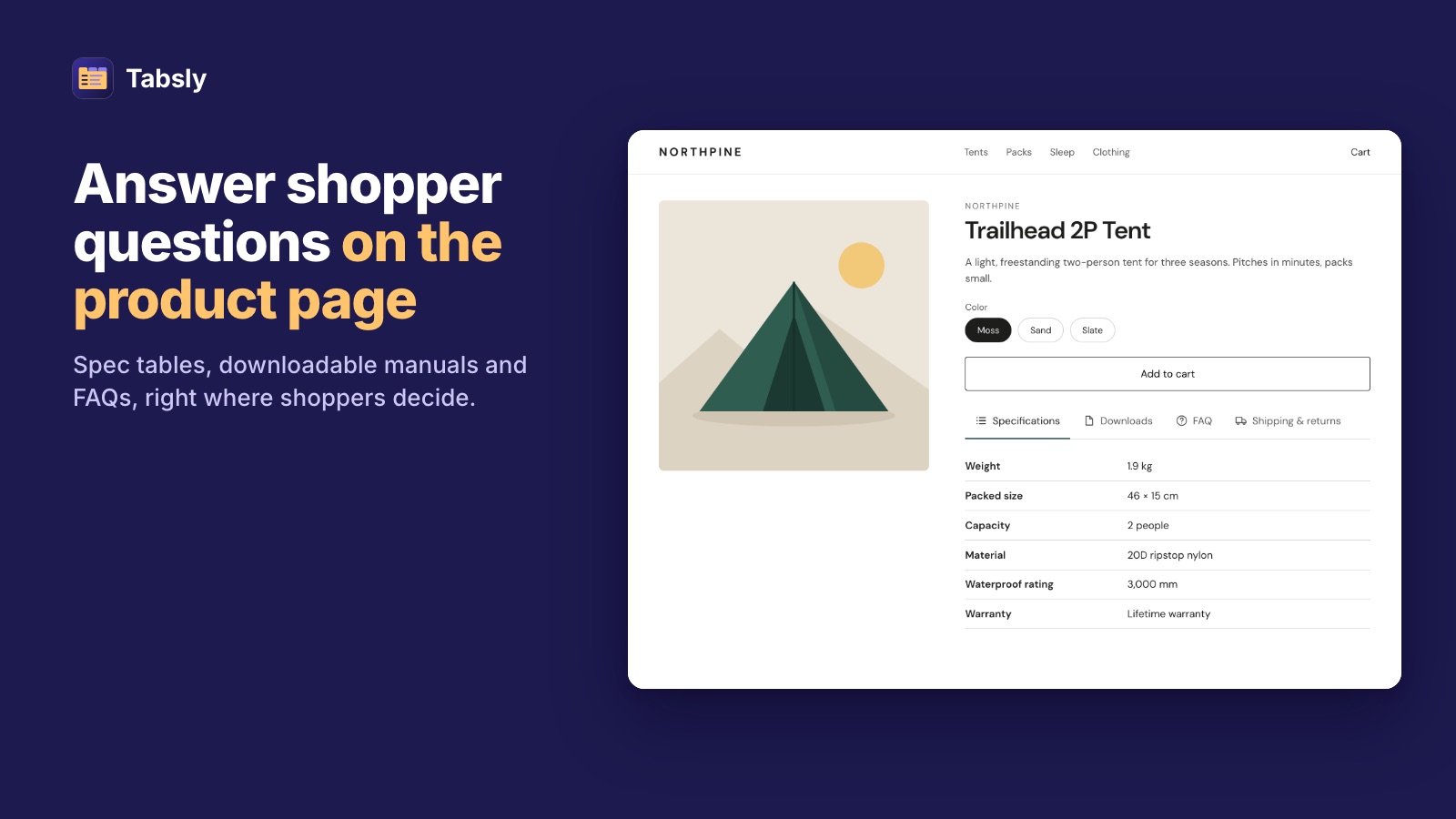
Write spec tables, downloadable documents, FAQs and shipping notes once, and show them on every matching product page — as tabs, an accordion or stacked sections.
The problem
Product pages repeat the same information. Your catalog shouldn't.
Specifications, documents and answers to common questions belong on the product page — written once, not once per product.
The same text in hundreds of places
Shipping, care and warranty notes get pasted into every product description. One change means editing every product, and the copies drift apart.
Spec tables with different numbers
The table layout is shared, but weight, size and material differ per product. Plain text tabs can't do that, so the table is copied and edited by hand.
Manuals with nowhere to go
Manuals, certificates and safety data sheets have no natural home on the product page in most themes, so shoppers email support for them.
How Tabsly adds content to Shopify product pages
Blocks are typed, assigned by rules and shown by your theme — not pasted into each product.
Write a block once
In the app inside your Shopify admin, create a spec table, a documents list, an FAQ or a rich text block. Give it a title, an icon and a place in the display order.
Choose the products with rules
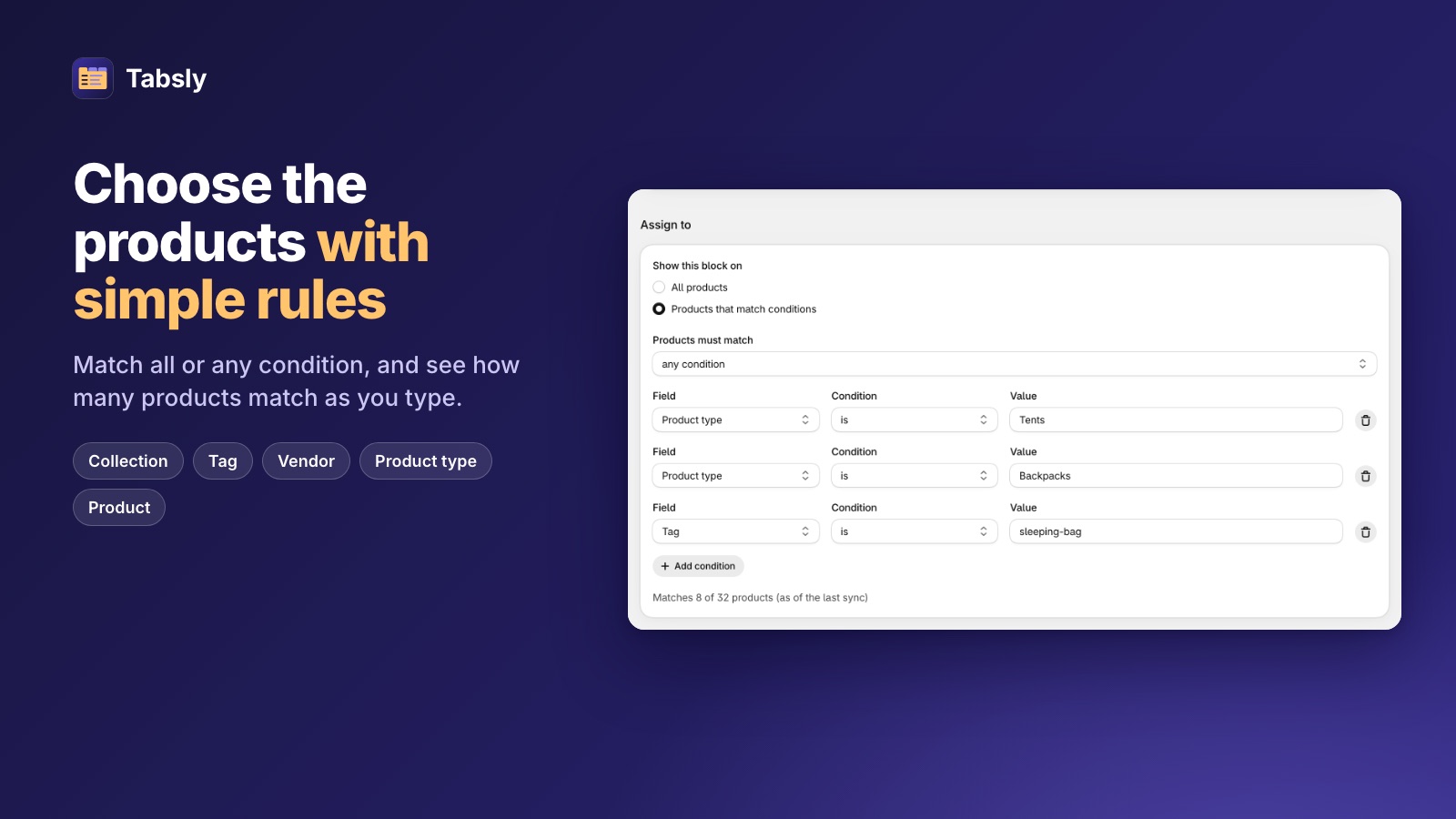
Show the block by collection, tag, vendor, product type or a hand-picked list — "is" or "is not", match all or any. A live count tells you how many products a rule matches before you save.
Add one app block to your theme Beta
Place the "Product content blocks" app block on your product template in the theme editor — the setup guide opens it for you. No theme code is edited.
Content blocks
More than text tabs: spec tables, documents, FAQs and rich text
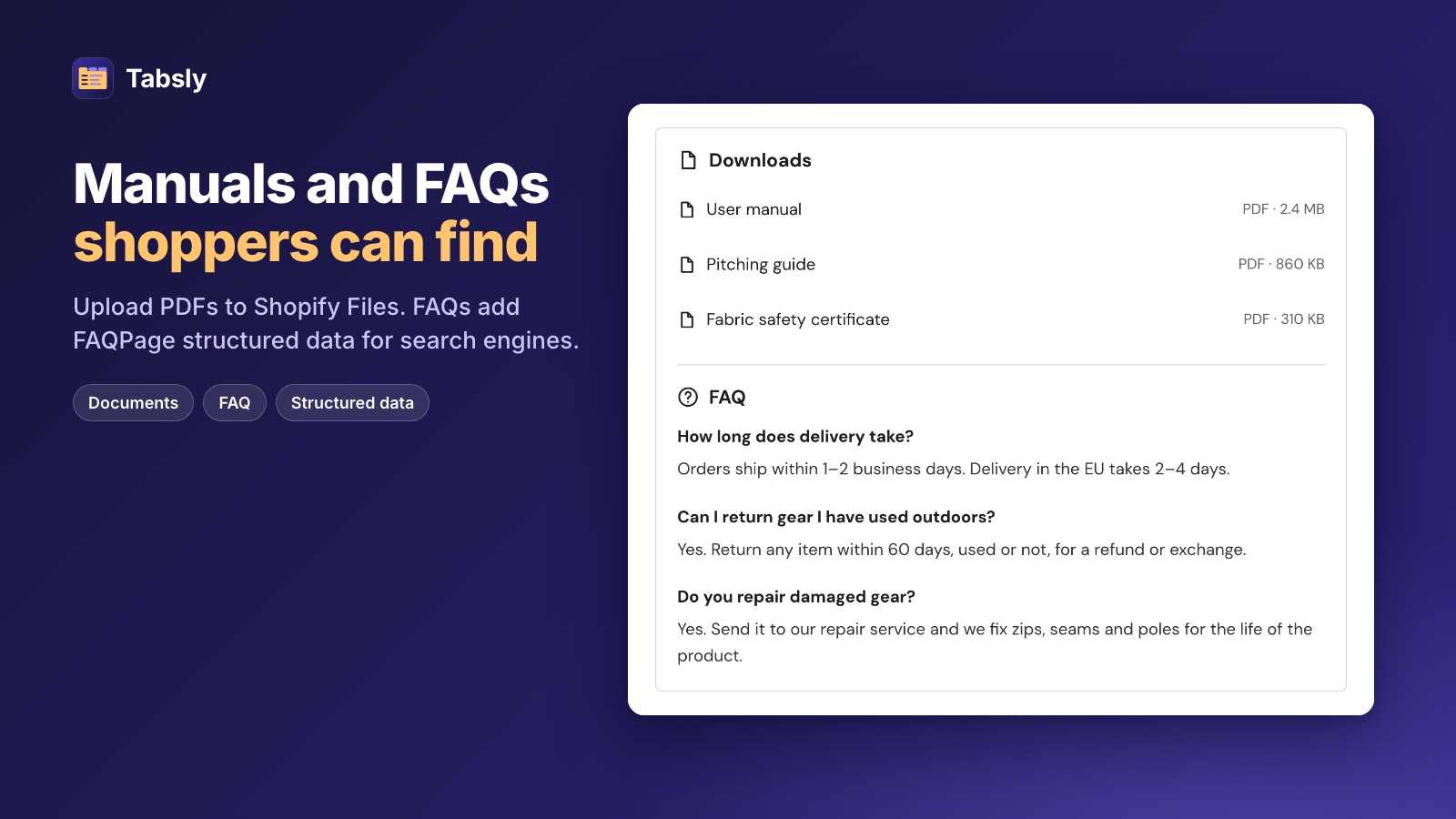
Each block knows what it holds, so a spec table looks like a table, a document shows its type and size, and an FAQ is marked up as one.
Pro
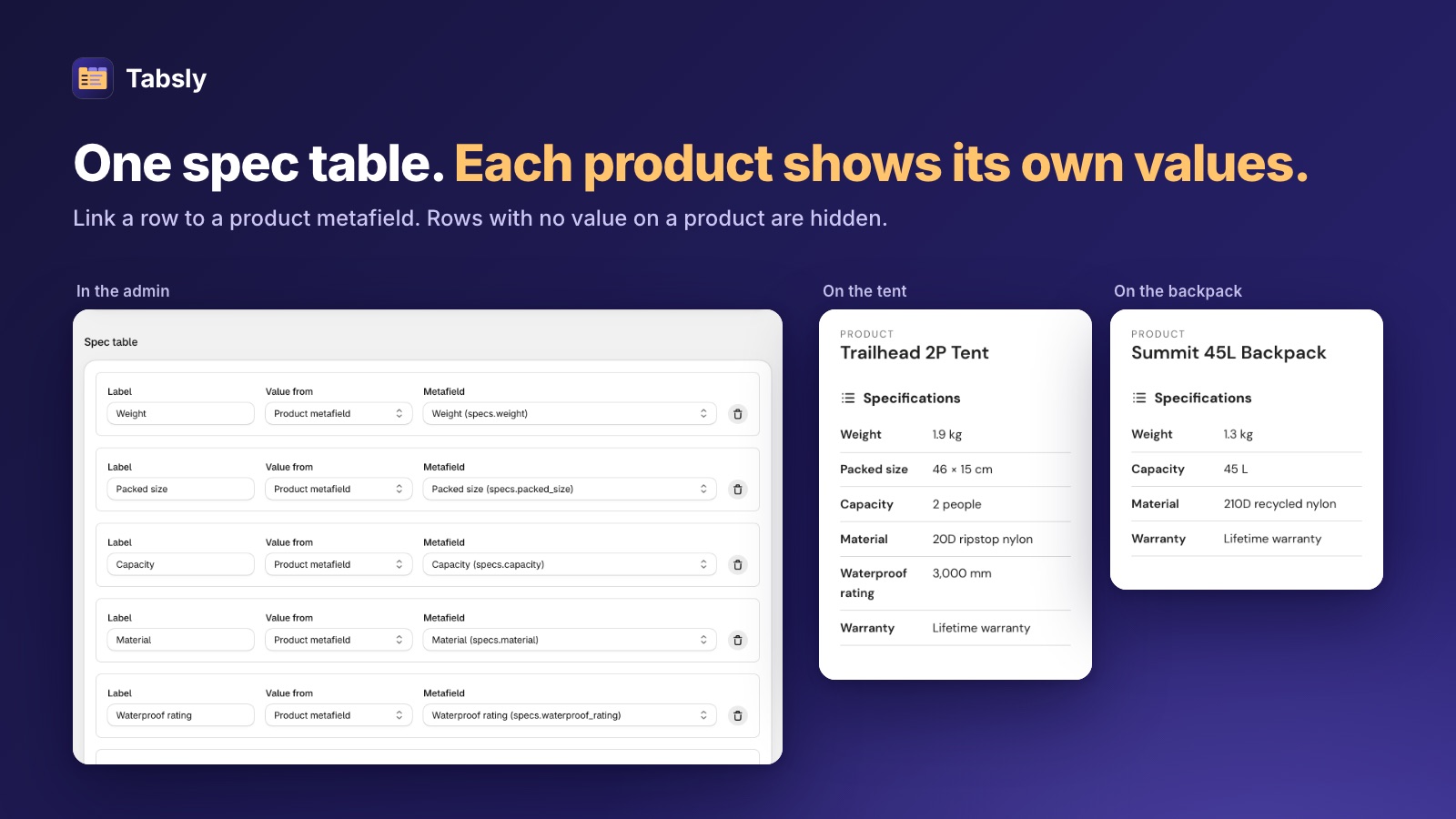
Spec tables with each product's own values
Each row has a label and a fixed value, or a value read from a product metafield — so one table fits a whole product range and each product shows its own numbers. Empty rows are hidden.
Documents: Pro · FAQ: Free
Downloadable documents and FAQs
Upload manuals, certificates and safety sheets (PDF, Office, CSV, TXT, ZIP or images, up to 20 MB each), stored in Shopify Files. FAQ blocks answer common questions where shoppers decide.
Features
Reusable product page content, under control
Set the rules once, handle the exceptions per product, and let new products pick up their blocks on their own.
Assign by rules
Collection, tag, vendor, product type or chosen products. No conditions means every product.
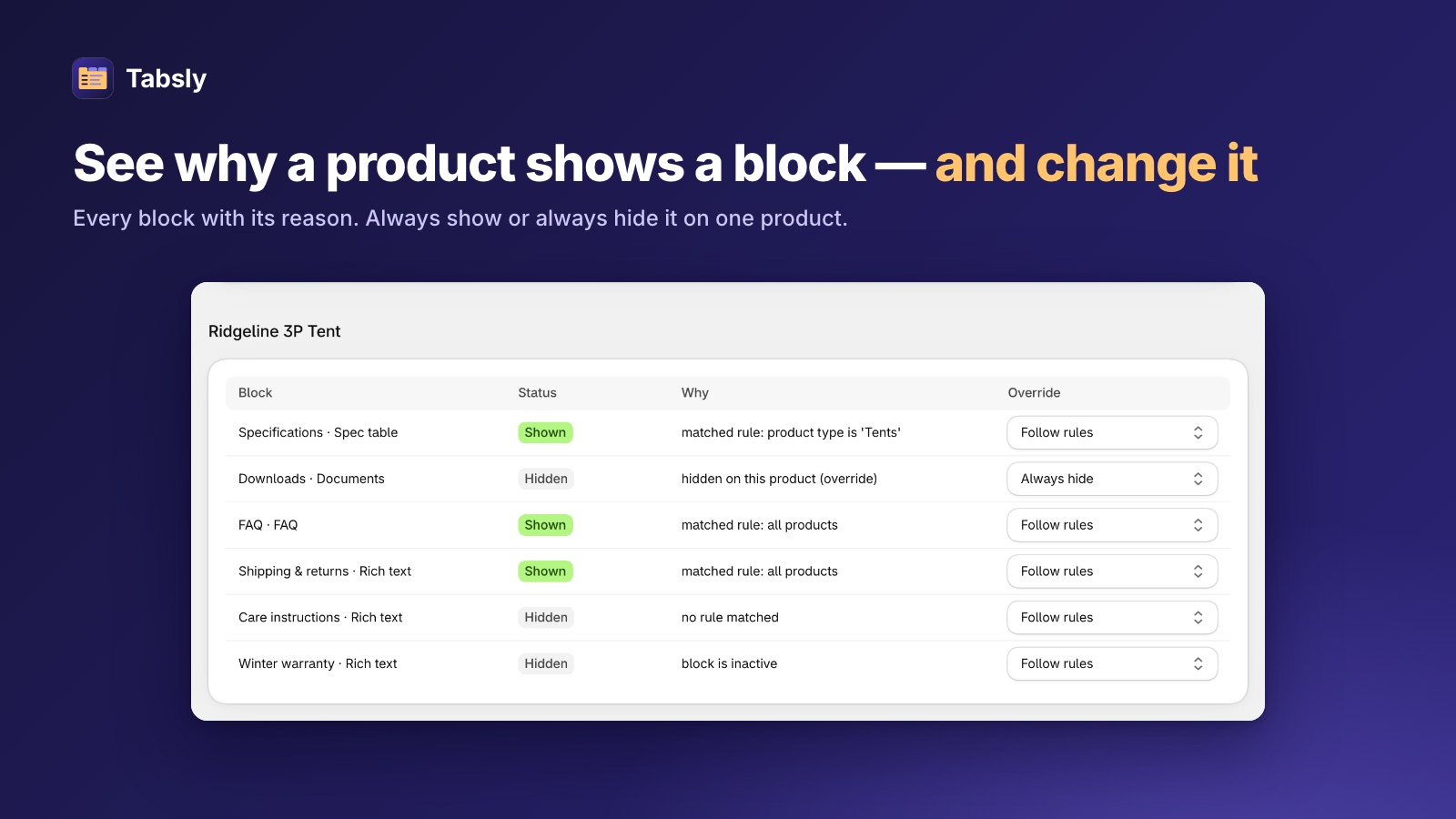
"Why does this product show it?"
Search a product, see every block, whether it shows and why — then force it on or off for that product.
Tabs, accordion or sections Beta
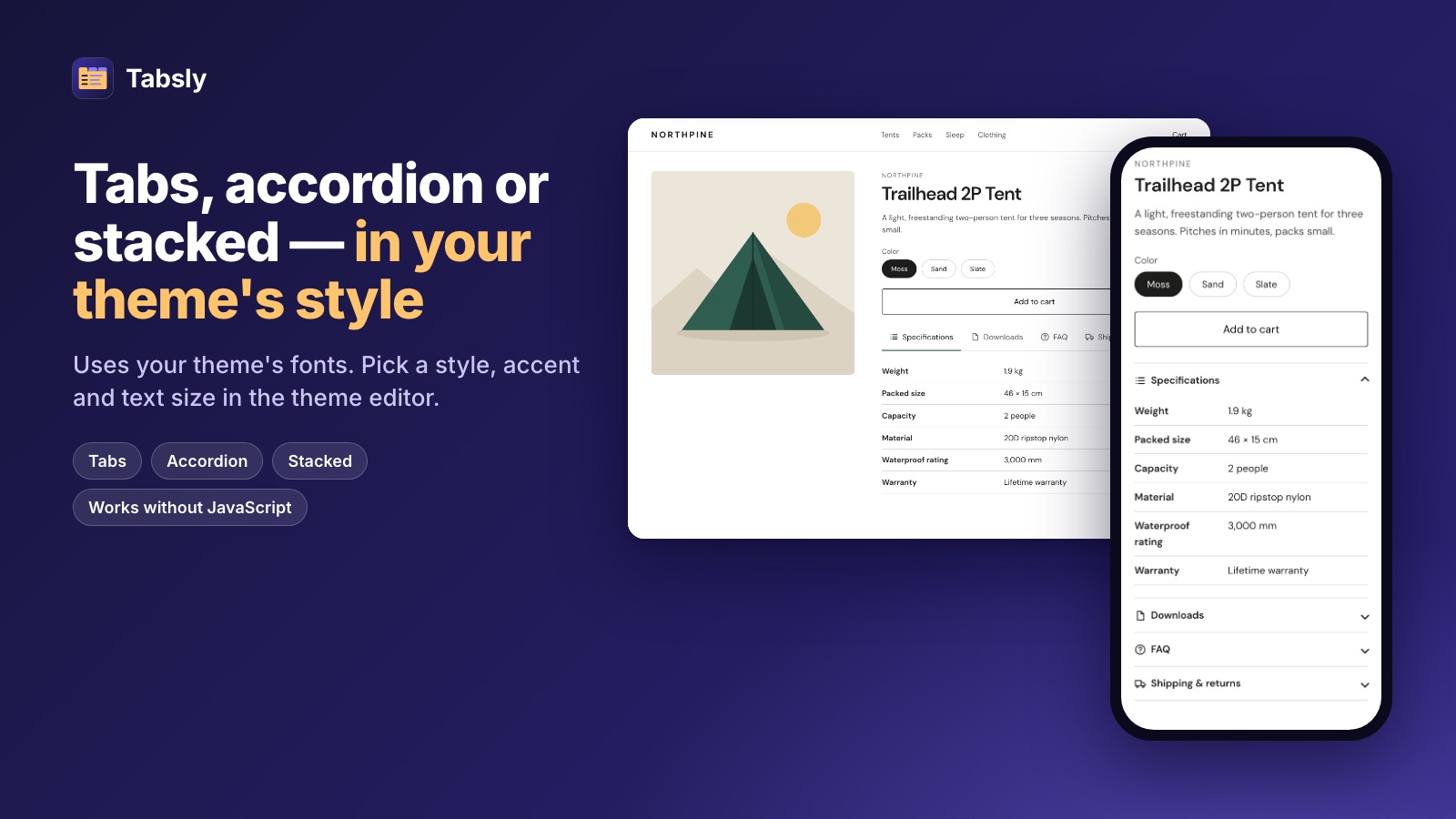
Pick a default display mode, change it per app block, and set style, accent color and icons in the theme editor.
In the page's HTML Beta
Content is rendered by your theme, not loaded by JavaScript, so search engines can read it and the layout doesn't shift. FAQ blocks add FAQPage structured data.
New products covered automatically Beta
New and edited products get their blocks by themselves, with a daily resync and a "Resync now" button.
Manage blocks in bulk
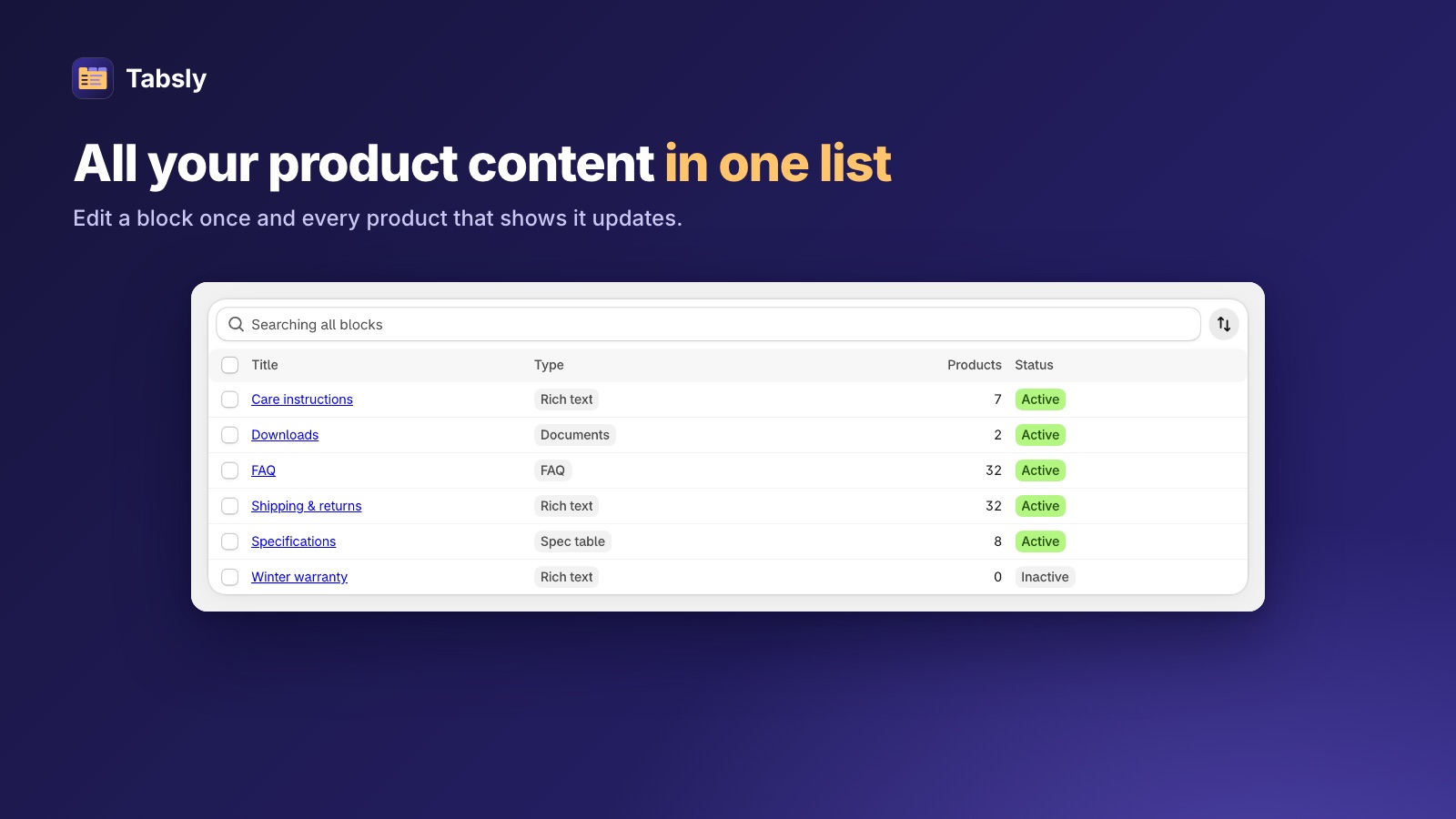
Search and sort blocks, see how many products each one reaches, and activate, deactivate or delete several at once.
Content stays in Shopify
Blocks live in your store as Shopify data and files in Shopify Files. The app keeps no customer data.
Embedded in your admin
Tabsly runs inside the Shopify admin, with a setup guide on the home page. No second login.
Beta: built and tested, and being checked on live stores before launch.
Product overrides
Handle the exceptions without bending your rules
Open any product to see every block, whether it shows, and the reason — like "matched rule: tag is outdoor". Force a block on or off for that one product and keep your rules simple.
Works with your theme
Online Store 2.0 themes
Any theme that supports app blocks on the product template, such as Dawn and Horizon.
No theme code edited
Add the app block in the theme editor. Remove it and everything is gone.
Your theme's fonts
Blocks use your theme's fonts; style, colors and text size are set in the theme editor.
Product pages only
The app block goes on the product template. Vintage themes and headless or Hydrogen storefronts are not supported.
Plans
Billed through Shopify, on your Shopify invoice. Downgrading never deletes a block — it just stops showing until you upgrade again.
Free
Two blocks free, for good.
- 2 active blocks
- Rich text and FAQ blocks
- FAQPage structured data
- Rules, live match count and product overrides
- Tabs, accordion or stacked sections
- No limit on products or page views
Tabsly Pro
For catalogs that need specs and documents on every product. Or $95.90 a year — save 20%.
- Everything in Free
- No limit on active blocks
- Spec tables with per-product metafield values
- Downloadable documents
Frequently asked questions
Content blocks, rules, themes, plans and search engines — the short answers.
Tabsly is a Shopify app for product page content. You write a block once in the app (a spec table, a list of downloadable documents, an FAQ or rich text), choose which products show it with rules, and it appears on the product page as tabs, an accordion or stacked sections.
Rich text blocks for shipping, returns, care or warranty notes. FAQ blocks with questions and answers. Spec tables, where each row has a label and a fixed value or a value read from a product metafield. Documents blocks, which list files such as manuals, certificates and safety data sheets for shoppers to open. Rich text and FAQ blocks are on the Free plan; spec tables and documents need Pro.
With rules on each block: collection, tag, vendor, product type or hand-picked products, with "is" or "is not", matching all or any conditions. A block with no conditions shows on every product. The editor shows how many products a rule matches before you save. For exceptions, the product overrides page lists every block for one product, says why it shows or not, and lets you force it on or off.
A spec table row can read a product metafield, such as Weight or Material, so every product shows its own value from the same shared table. Rows with no value on a product are hidden. Tabsly reads metafields you already have or create in Shopify; it does not create, fill or import them.
Online Store 2.0 themes, such as Dawn and Horizon, which let you add app blocks to the product template. You add the Product content blocks app block in the theme editor; no theme code is edited, and removing the block removes everything. Vintage themes and headless or Hydrogen storefronts are not supported.
Tabsly is built so block content is rendered by your theme as part of the page's HTML, not loaded by JavaScript afterwards, and FAQ blocks add FAQPage structured data. That makes the content readable by search engines. It does not guarantee rankings, and Google decides on its own whether to show FAQ rich results. The storefront part of the app is in beta while it is checked on live stores.
In your store's Shopify Files, not on our servers. You can upload PDF, Word, Excel, CSV, TXT, ZIP and image files of up to 20 MB each, give each a label, and shoppers see the file type and size and open it in a new tab.
The Free plan includes 2 active rich text or FAQ blocks, with rules, product overrides, every display mode and no limit on products or page views. Pro costs $9.99 a month, or $95.90 a year, removes the block limit and adds spec tables and documents. Downgrading from Pro to Free deletes nothing: blocks over the limit or of a Pro-only type just stop showing, and come back when you upgrade again. Tabsly Pro is our plan and does not require Shopify Plus.
Block titles can be translated with Shopify's Translate & Adapt app. Block content (spec rows, FAQ text, rich text and document labels) can't be translated yet, so Tabsly suits single-language stores best today.
Install it from its Shopify App Store listing, Tabsly: Product Tabs & Specs, at apps.shopify.com/frimty-ai. The Free plan has no time limit, and Pro is billed through Shopify on your Shopify invoice.