
Short answer: the quickest way is the theme editor. Add Collapsible row blocks to your product template, one per question. That gives every product the same questions. To show different FAQs on different products and add FAQPage structured data, use an app such as Tabsly: write an FAQ block once, assign it by collection, tag, vendor or product type, and it appears on every matching product.
Why put an FAQ on the product page
Shoppers ask the same questions before they buy: Does it fit? When will it arrive? Can I return it? Is it waterproof? If the answer isn't on the page, they either email you or leave. An FAQ right next to the add-to-cart button answers those questions at the moment they matter.
A product page FAQ is different from a store-wide FAQ page. The store FAQ covers general policies. The product FAQ should answer questions about this product or this kind of product. "Can I wash it at 40°C?" belongs on a sweater, not on a lamp.
Step 1: Collect the right questions
Don't invent questions. Take them from:
- Your support inbox: search for the products or collections that get the most pre-sale emails.
- Product reviews: complaints often show what the page didn't explain ("smaller than I expected").
- Return reasons: wrong size, wrong compatibility, wrong expectations.
- Search queries: what people type into your store search and Google Search Console.
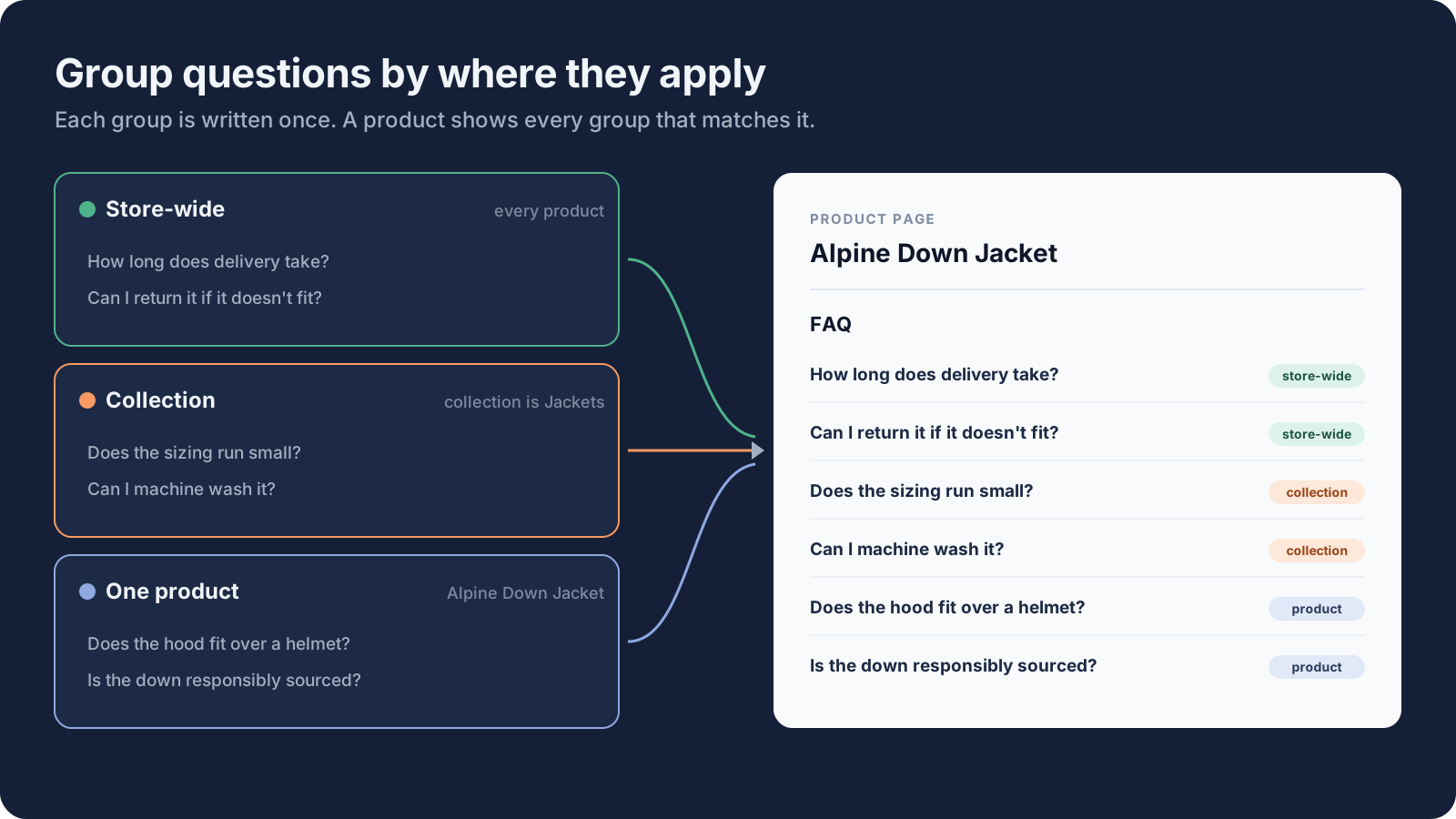
Then group them. Some questions apply to the whole store (shipping times), some to a collection (sizing for all jackets), and a few to one product. That grouping decides which method works for you.
Method 1: Collapsible rows in the theme (no app)
- Go to Online Store → Themes → Customize.
- Open Products → Default product.
- In the product information section, add a Collapsible row block for each question. Put the question in the heading and the answer in the content.
- Save.
This is free and quick, and it suits store-wide questions. The limits: every product on the template shows the same questions, and the theme does not add FAQ structured data for them.
Method 2: Metafields for per-product questions (no app)
If each product needs its own answers, create product metafields (for example "FAQ answer 1") under Settings → Custom data → Products. Then connect each collapsible row's content to a metafield using the theme editor's dynamic source button. Each product now shows its own answer.
This works, but you fill the answers in product by product. A question shared by 200 products means 200 copies of the same text. Change it once and you change it 200 times.
Method 3: FAQ blocks assigned by rules (Tabsly)
Tabsly treats an FAQ as its own block type, so you manage it in one place:
- Create an FAQ block in the app and add your questions and answers, for example "Jacket sizing FAQ".
- Assign it with a rule, such as "collection is Jackets". The editor shows how many products match before you save.
- Add the Product content blocks app block to the product template once. The FAQ appears as a tab, an accordion item or a stacked section.
You can make several FAQ blocks, one for shipping on every product, one per collection, one for a single product, and a product shows all the blocks that match it. When an answer changes, edit the block once and every matching product updates. FAQ blocks are on the Free plan, which includes 2 active blocks.
FAQ structured data: what it does and doesn't do
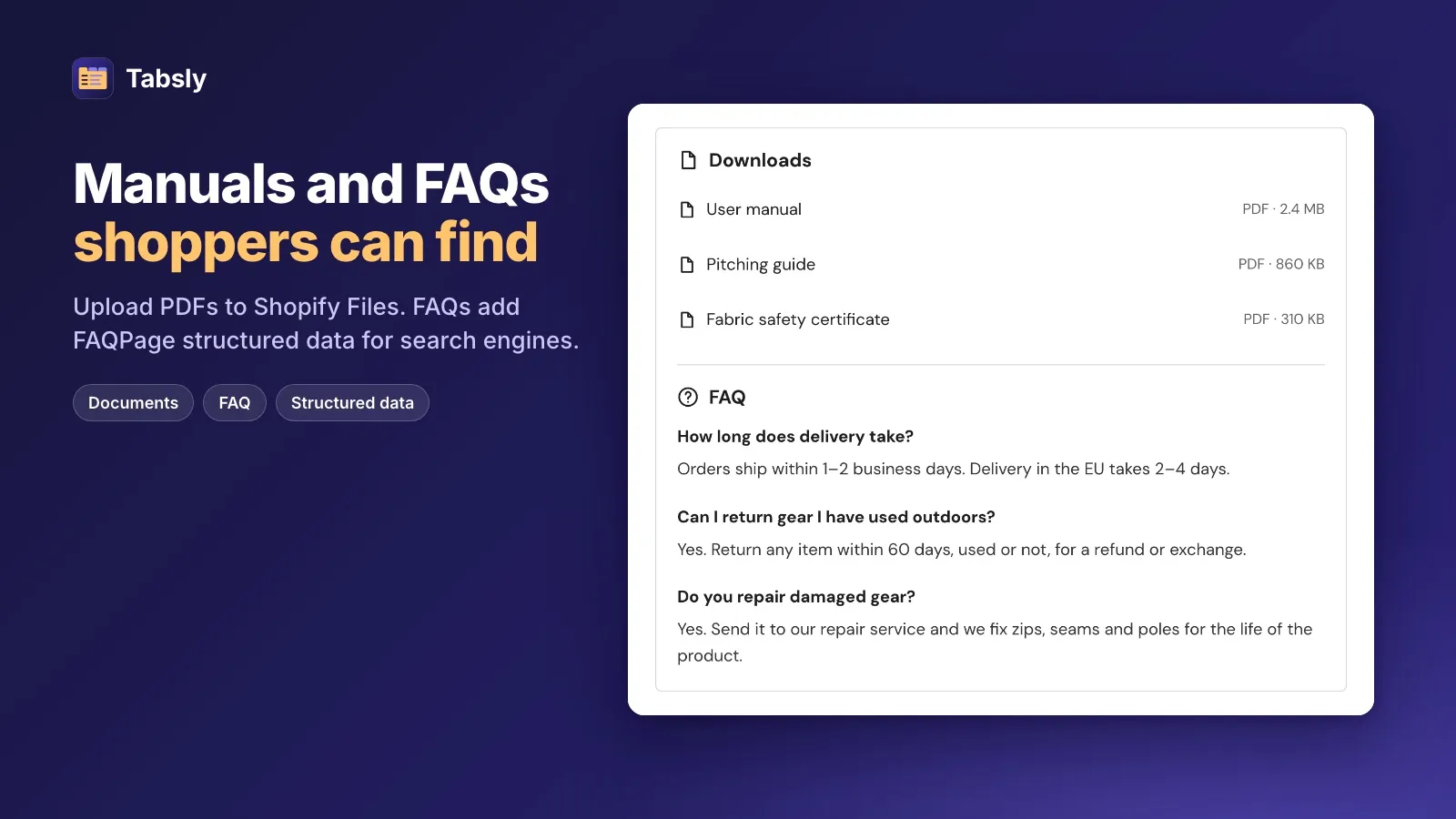
FAQPage structured data is a hidden, machine-readable script (JSON-LD) that tells search engines "this part of the page is a list of questions and answers". Tabsly adds it for FAQ blocks, and if a product shows several FAQ blocks, they are merged into one FAQPage script, as search engines expect.
Be realistic about it. Structured data makes the questions easier for search engines and AI assistants to understand, but it doesn't guarantee rankings. Google decides on its own whether to show FAQ rich results, and today it shows them for very few sites. Treat the markup as a clear label, not a ranking trick. Tabsly's structured data is in beta while it's checked on live stores.
Comparison of the three methods
| Collapsible rows | Metafields + rows | Tabsly FAQ blocks | |
|---|---|---|---|
| Cost | Free | Free | Free plan (2 blocks) |
| Different FAQs per product group | No (one set per template) | Yes, filled per product | Yes, by rules |
| Edit a shared answer once | Yes, per template | No | Yes |
| FAQPage structured data | No | No | Yes (beta) |
| Number of questions | One block per question | One metafield per answer | As many as you need in one block |
Tips for writing product FAQ answers
- Answer in the first sentence. "Yes, it's machine washable at 30°C." Explain after that.
- Use the shopper's words. Write the question the way people ask it, not in product-team language.
- Keep it short. Five to eight questions per product is plenty. Long policies belong on their own page, with a link.
- Don't repeat the description. If the answer is already the first line of the description, the question isn't needed.
- Keep answers true. An outdated answer about shipping times does more harm than no answer. That's another reason to keep shared answers in one place.
Frequently asked questions
How do I add an FAQ to a Shopify product page without an app?
Open the theme editor, choose the product template and add a Collapsible row block for each question, with the question as the heading and the answer as the content. Every product on that template shows the same questions. For per-product answers, connect the rows to product metafields.
Can different products show different FAQs?
Yes. Without an app you need separate product templates or metafields filled on each product. With Tabsly you create an FAQ block once and assign it by collection, tag, vendor, product type or chosen products, and a product can show several FAQ blocks at once.
Will an FAQ on my product page get rich results in Google?
Not necessarily. FAQPage structured data helps search engines understand the questions, but Google decides on its own whether to show FAQ rich results and currently shows them for very few sites. Add an FAQ because it helps shoppers, not for a search feature.
Is the Tabsly FAQ block free?
Yes. FAQ and rich text blocks are on the Free plan, which allows 2 active blocks with no limit on products or page views. Pro removes the block limit and adds spec tables and documents.
Try Tabsly free on your Shopify store
Spec tables, documents, FAQs and rich text written once and shown on every matching product as tabs, an accordion or stacked sections.
Install free on ShopifyTabsly Team
Helping Shopify stores grow with smart automation.