
Short answer: on any Online Store 2.0 theme (Dawn, Horizon and most current themes) you can add tab-like sections without an app. Open the theme editor, go to the product template and add Collapsible row (or Accordion) blocks. That's fine for a few rows that every product shares. If different products need different tabs, or you want real horizontal tabs, spec tables or downloadable files, an app such as Tabsly saves you from editing every product by hand.
Why product pages need tabs
A product page has to hold a lot: the description, specifications, shipping and returns, care instructions, warranty, FAQs, sometimes manuals and certificates. Put all of it in one long description and shoppers scroll past the part they need. Tabs and accordions group that information under short headings, so the page stays short and the details are one click away.
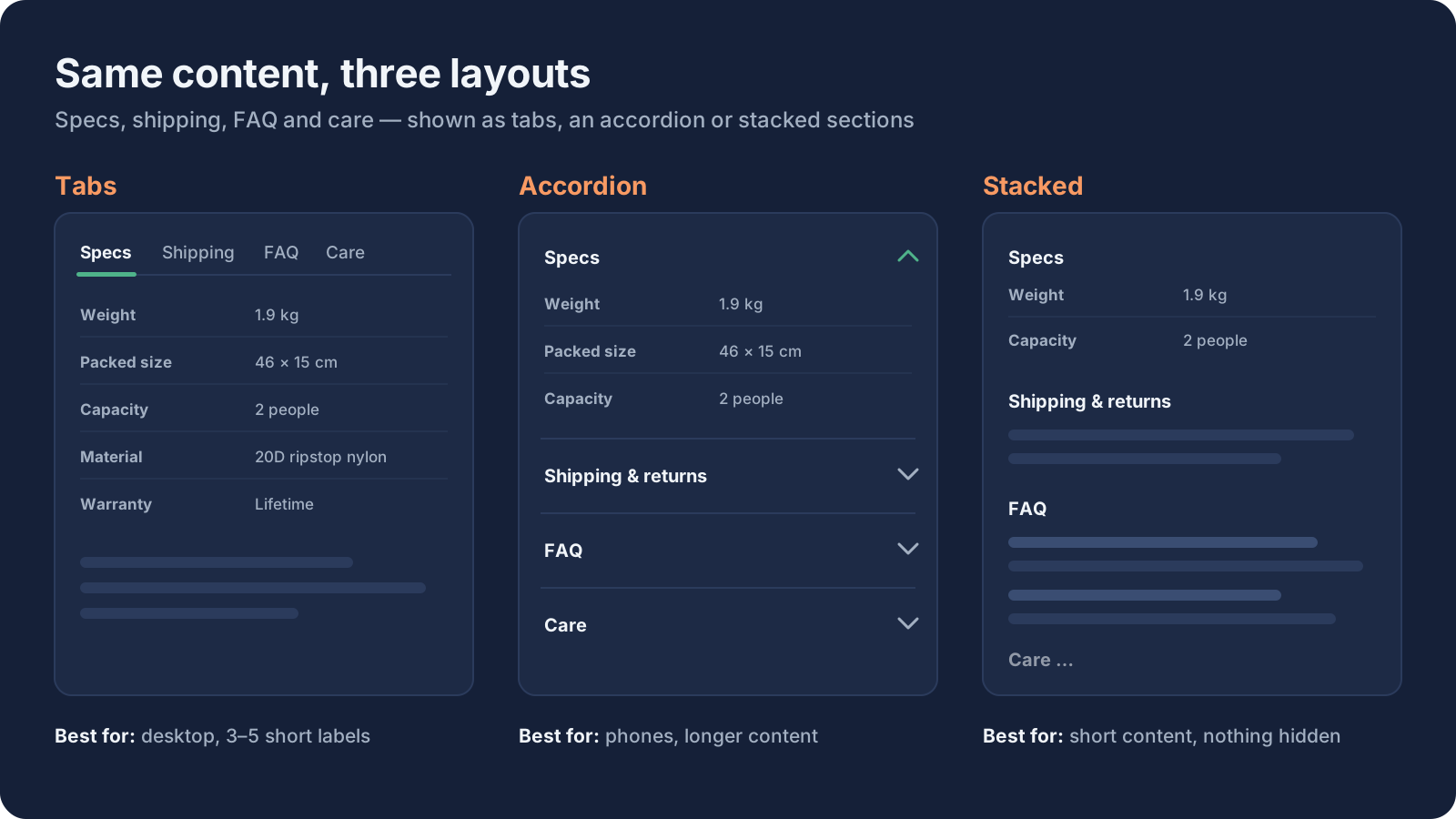
There are three common ways to do it on Shopify. Which one fits depends on two questions: does every product show the same content? and how many products do you have?
Method 1: Collapsible rows in the theme editor (no app)
Most free Shopify themes have a collapsible row block in the product information section. It shows as an accordion: a heading that opens to reveal its content.
- In your Shopify admin, go to Online Store → Themes and click Customize.
- From the page selector at the top, choose Products → Default product.
- In the product information section, click Add block and pick Collapsible row (the name differs by theme, for example "Accordion" in Horizon).
- Give it a heading such as "Shipping & returns", pick an icon and type the content.
- Repeat for each row, drag the rows into order and click Save.
The catch: every product that uses this template shows the same rows with the same text. To vary content by product you have two options in the theme itself:
- Several product templates. Create a template per product group ("product.outdoor", "product.electronics") and assign each product to one. This works, but every template is set up separately, and a change to shared text means editing each template.
- Dynamic sources. Connect the row's content to a product metafield, so each product shows its own text. Now the content lives in each product's metafield, and you fill it in product by product.
Method 2: HTML tabs in the product description (no app)
Some guides suggest pasting tab HTML and a small script into each product description, or editing the theme's Liquid code to split the description into tabs at certain headings. It works, but it has real costs:
- The same text is copied into every description, so one policy change means editing every product.
- Theme code edits can break or be lost when you update or switch themes.
- Hand-written tabs are often not usable with a keyboard or a screen reader.
Use this only for a small catalog, and only if you're comfortable maintaining code.
Method 3: A product tabs app
A tabs app moves the content out of the product description and into the app. You write a block once and choose which products show it. In Tabsly, it works like this:
- Create a block in the app, inside your Shopify admin: rich text, an FAQ, a spec table or a list of documents.
- Assign it by rules: collection, tag, vendor, product type or hand-picked products. The editor shows how many products match before you save.
- Add the "Product content blocks" app block to your product template in the theme editor. No theme code is edited.
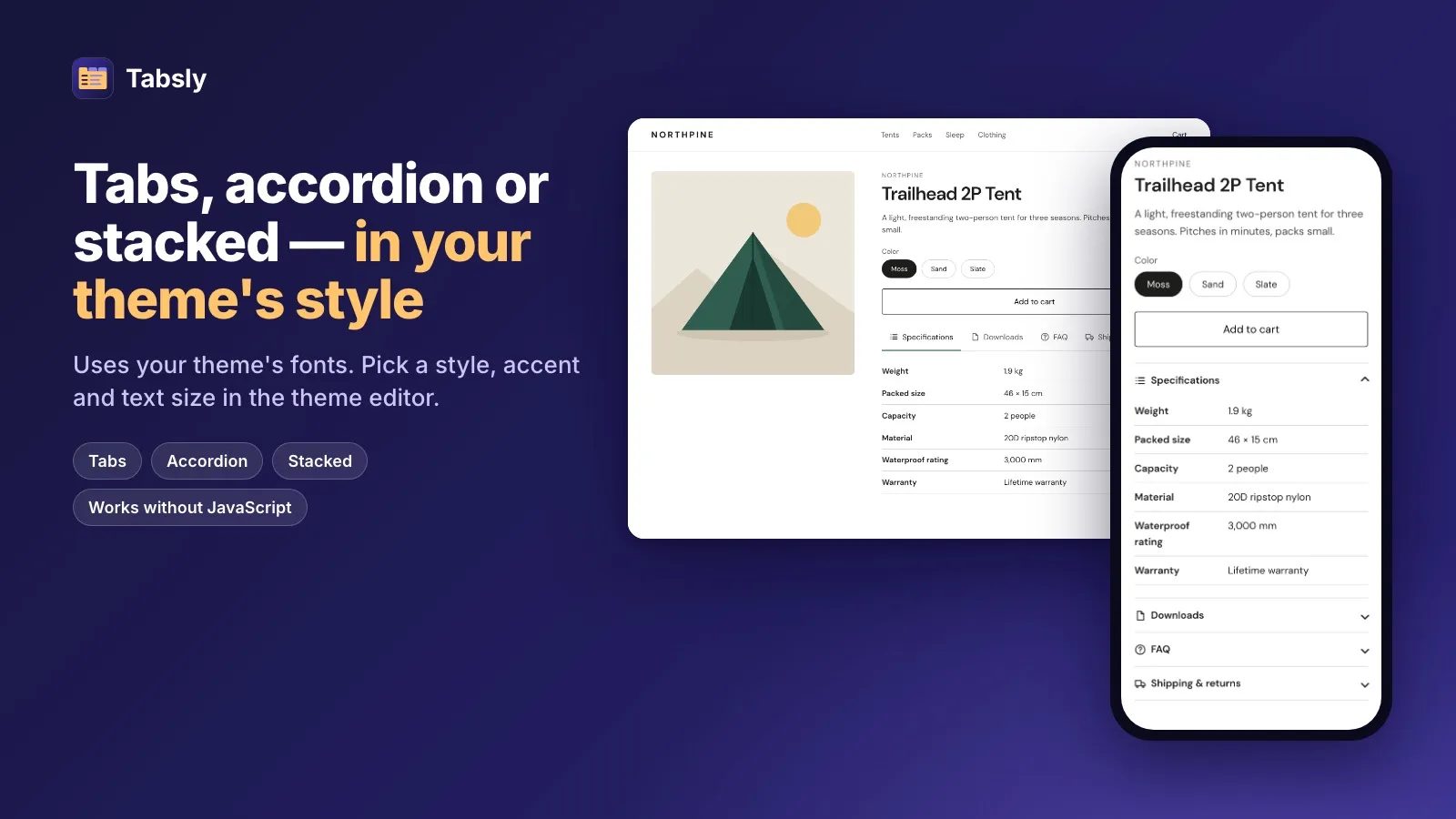
- Pick a display: tabs, an accordion or stacked sections, with a minimal, bordered or card style.
New products that match a rule get the right blocks on their own, so you don't need to come back every time you add a product. For one-off exceptions, the product overrides page shows every block for one product, whether it shows and why, and lets you force a block on or off.
Block content is rendered by your theme as part of the page's HTML, not loaded by JavaScript afterwards, so search engines can read it and the layout doesn't jump. The storefront part of Tabsly is in beta while it's checked on live stores.
Comparison: which method should you use?
| Theme collapsible rows | HTML in descriptions | Tabsly | |
|---|---|---|---|
| Cost | Free | Free | Free plan (2 blocks) · Pro $9.99/month |
| Different content per product group | Only with several templates or metafields | Yes, by hand per product | Yes, by rules |
| Edit shared text once | Once per template | No, once per product | Yes |
| Horizontal tabs | Accordion only in most themes | If you code them | Tabs, accordion or stacked |
| Spec tables with per-product values | Only with custom code | Typed by hand | Yes, from metafields (Pro) |
| Downloadable files | As links in text | As links in text | Documents block (Pro) |
| Theme code changes | None | Often | None |
What to put in your product tabs
Keep each tab focused on one question a shopper has. Good tabs for most stores:
- Description: what the product is and who it's for. This stays in the product's own description.
- Specifications: size, weight, materials, compatibility. See how to add a specification table.
- Shipping & returns: the same for most products, so write it once. See how to show the same content on many products.
- Care & warranty: usually shared by a whole collection or vendor.
- FAQ: the questions your support inbox gets every week. See how to add an FAQ section.
- Downloads: manuals, certificates or safety data sheets.
Three to five tabs is usually enough. More than that and shoppers stop clicking through them.
Tabs vs accordion: which works better?
Horizontal tabs work well on desktop when there are a few short labels. On a phone, an accordion is easier: headings stack, and each one opens in place. Tabsly lets you set a default display mode in its settings and change it per app block, so you can try both. The theme's own collapsible rows are an accordion only.
Whichever you pick, keep the most important information (price, variants, add to cart) above the tabs, and don't hide something shoppers need before buying, such as a key size or compatibility note, three clicks deep.
Frequently asked questions
Can I add tabs to a Shopify product page without an app?
Yes. On Online Store 2.0 themes such as Dawn, open the theme editor, choose the product template and add Collapsible row blocks to the product information section. They show as an accordion. Every product on that template shows the same rows unless you create several templates or connect the row content to a product metafield.
How do I show different tabs on different Shopify products?
Without an app, create a separate product template for each group of products, or connect collapsible rows to product metafields and fill them per product. With an app such as Tabsly, you write each block once and assign it by collection, tag, vendor, product type or chosen products.
Do product tabs hurt SEO?
Not if the content is in the page HTML. Theme collapsible rows and Tabsly blocks are rendered by the theme, so search engines can read them even when a tab is closed. Content that a script loads after the page shows is harder for crawlers and can shift the layout.
Does Tabsly work with my theme?
Tabsly works with Online Store 2.0 themes that support app blocks on the product template, such as Dawn and Horizon. Vintage themes and headless or Hydrogen storefronts are not supported.
Try Tabsly free on your Shopify store
Spec tables, documents, FAQs and rich text written once and shown on every matching product as tabs, an accordion or stacked sections.
Install free on ShopifyTabsly Team
Helping Shopify stores grow with smart automation.