
Short answer: don't paste shared text into product descriptions. If every product shows the same text, put it in the product template once, as a theme block. If different groups of products need different text (a returns note for sale items, care notes per material, a warranty per brand), write each piece once as a block in an app such as Tabsly and assign it by rules: collection, tag, vendor or product type. Edit it once and every matching product updates.
The copy-paste problem
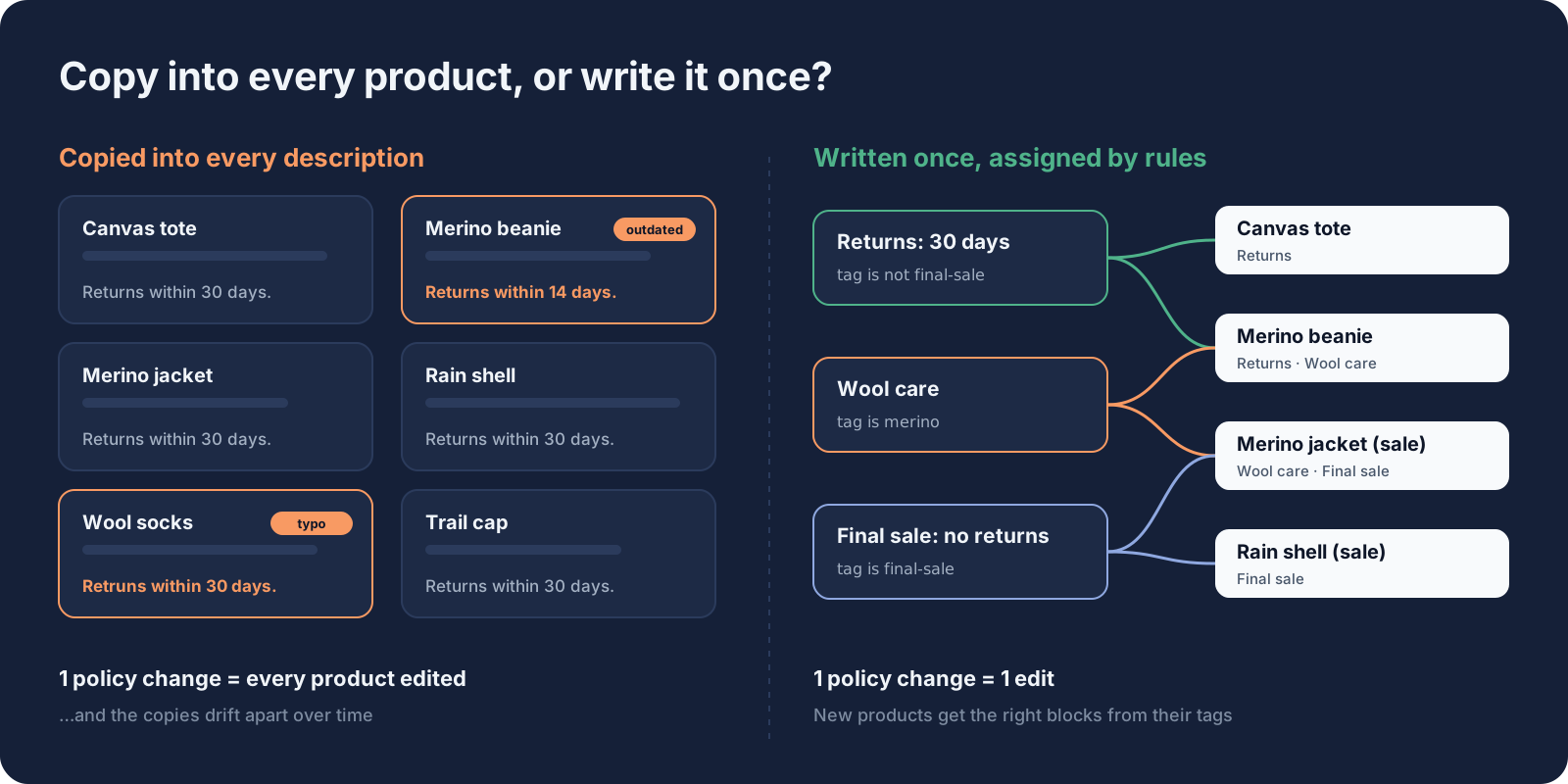
It starts small. You paste "Free shipping over $50, 30-day returns" into a few descriptions. A year later the same paragraph lives in 400 products, some with the old return window, some with a typo someone fixed only once. Then shipping rates change, and you face 400 edits or a bulk-edit spreadsheet.
Shared text copied into descriptions causes three problems:
- Every change is a big job. One policy update means editing every product.
- The copies drift. Some get updated, some don't, and shoppers see conflicting answers.
- Descriptions get long. The text that makes each product unique gets buried under boilerplate.
The fix is the same idea in every method below: write the content once, then decide where it shows.
Method 1: One theme block for all products (no app)
If the text really is the same everywhere, for example a store-wide shipping note, add it to the product template:
- Go to Online Store → Themes → Customize and open Products → Default product.
- Add a Collapsible row or Text block to the product information section.
- Write the text, or link it to a Shopify page with Row content from page (available in Dawn and similar themes) so you edit it under Online Store → Pages.
This is the right answer for truly global text. It stops working as soon as one group of products needs something different.
Method 2: Templates per product group (no app)
You can create extra product templates, such as "product.final-sale" with a different returns note, and assign products to them one by one or in bulk. It's free, but:
- Each template is configured separately, so a change to text shared by several templates is made several times.
- A product uses one template, so you can't combine "sale returns note" and "wool care note" unless you build a template for every combination.
- New products land on the default template until someone remembers to switch them.
Method 3: Metaobjects and metafield references (no app)
The most flexible built-in option: create a metaobject definition such as "Care guide" with one entry per material, add a product metafield that references a care guide, and connect a theme block to it with dynamic sources. Each text exists once, and products point to it.
The trade-off is setup time and upkeep. You need a definition and a reference metafield for each kind of content, someone has to set the reference on every product (including new ones), and most themes need some Liquid work to show a metaobject's fields nicely.
Method 4: Write once, assign by rules (Tabsly)
Tabsly is built for this exact job. Instead of linking each product to its content, you link the content to products with rules:
- Write a block in the app, for example a rich text block called "Final sale: no returns".
- Add a rule: "tag is final-sale". Conditions can use collection, tag, vendor, product type or hand-picked products, with "is" or "is not", matching all or any. A block with no conditions shows on every product.
- Check the live count. The editor shows how many products the rule matches before you save, so there's no guessing.
- Add the app block once to your product template. Each product shows every block whose rules it matches, as tabs, an accordion or stacked sections.
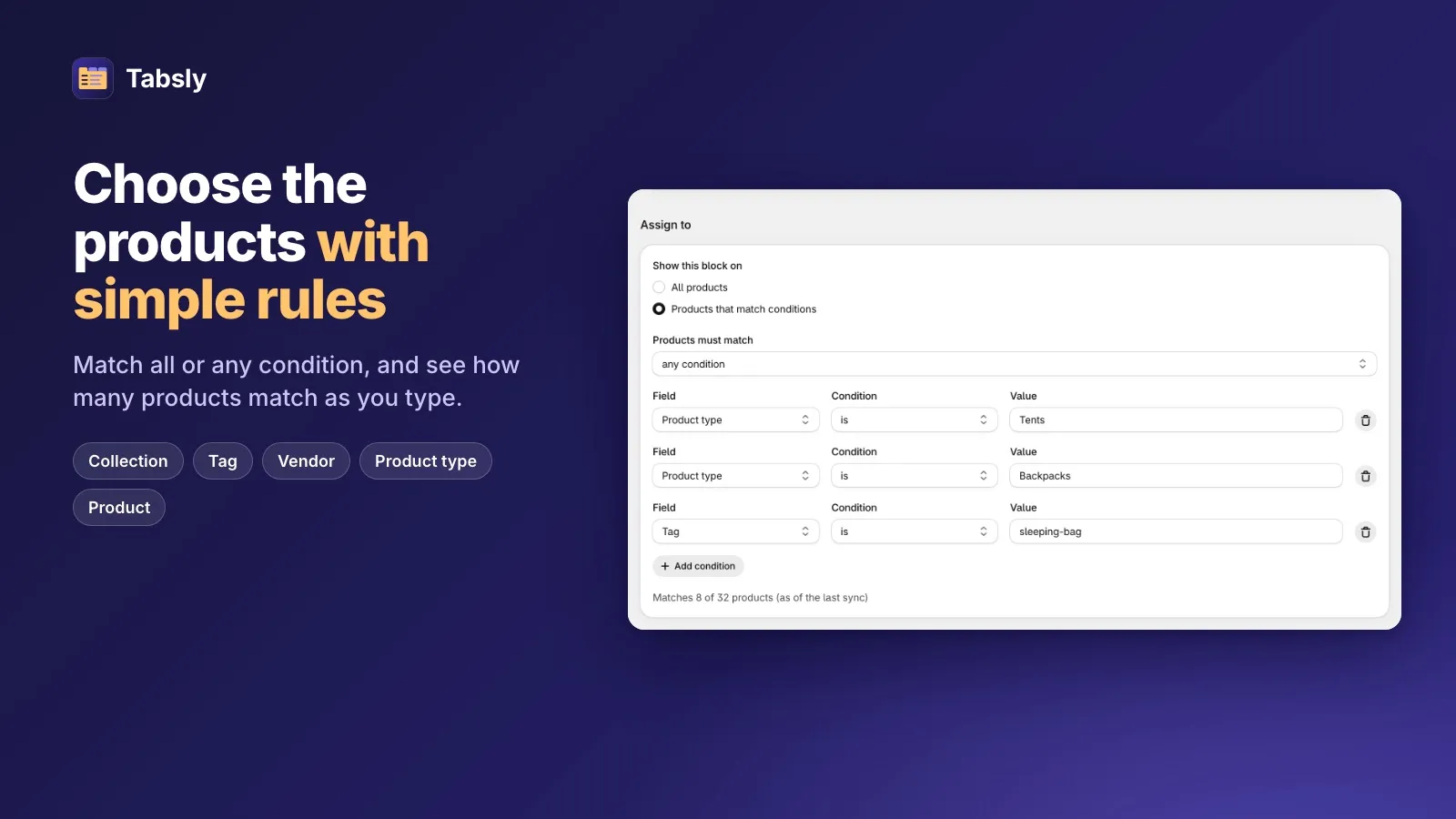
Because a product can match several blocks, the combinations take care of themselves. A merino jacket on sale can show "Shipping" (all products), "Wool care" (tag is merino) and "Final sale" (tag is final-sale) without a special template.
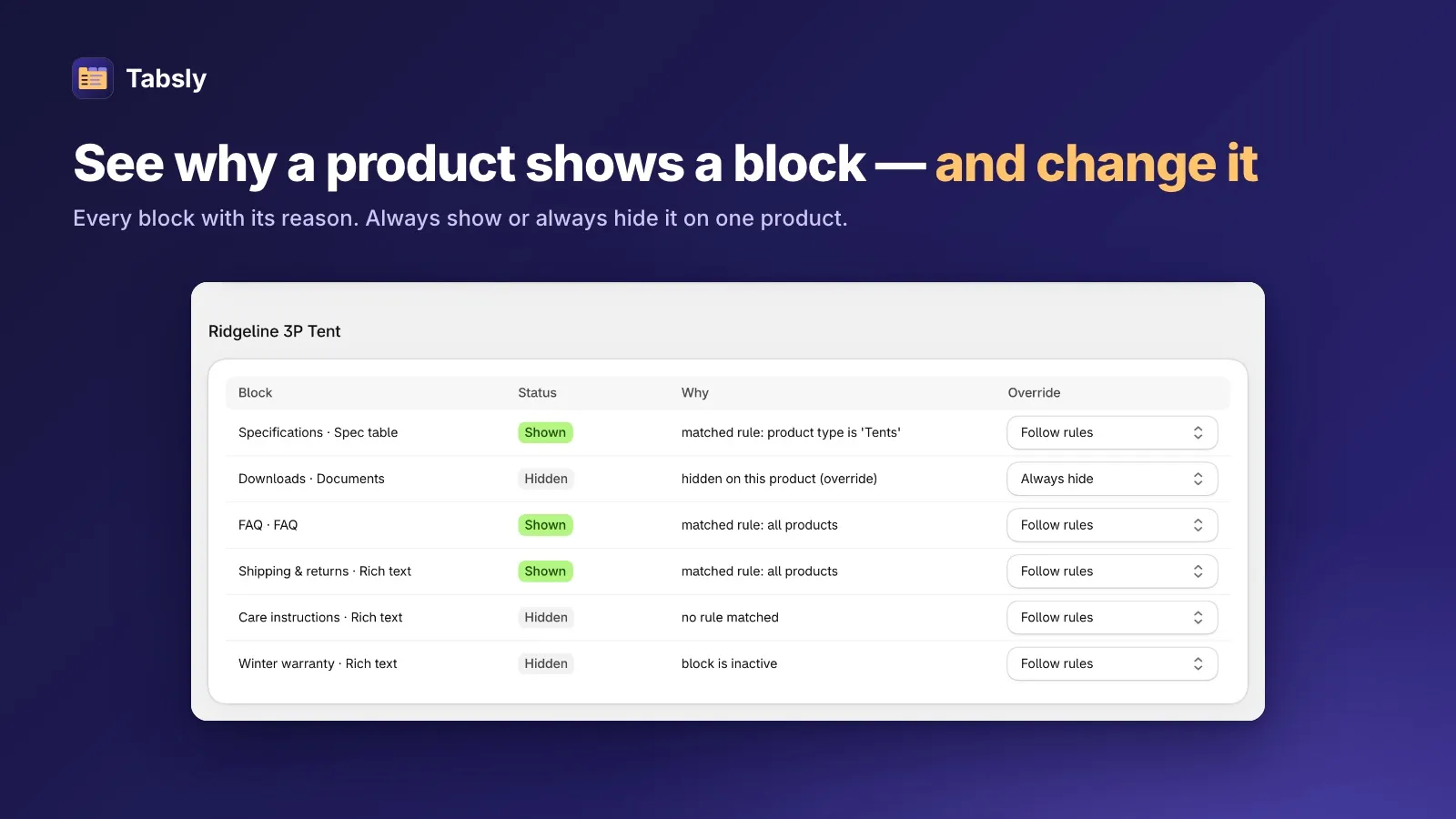
New and edited products are picked up automatically: tag a new product "merino" and it gets the wool care block. For exceptions, open the product overrides page to see every block for one product, why it shows or doesn't ("matched rule: tag is merino"), and force it on or off.
One honest limit: rich text in Tabsly is entered as HTML today, as there is no visual editor yet. For a few paragraphs with headings and lists, that's simple to write.
Comparison
| One theme block | Extra templates | Metaobjects | Tabsly rules | |
|---|---|---|---|---|
| Edit shared text once | Yes | Once per template | Yes | Yes |
| Different text per group | No | Yes | Yes | Yes |
| Combine several shared texts on one product | No | Only with a template per combination | Yes, one reference per kind | Yes, automatically |
| New products covered automatically | Yes | No | No (set the reference) | Yes, if they match a rule |
| Setup effort | Minutes | Low | High | Low |
| Cost | Free | Free | Free | Free plan (2 blocks) · Pro $9.99/month |
What content to share, and what to keep per product
Good candidates for shared blocks:
- Shipping and delivery: usually store-wide, maybe different for oversized items.
- Returns and exchanges: often different for sale or personalised items.
- Care instructions: shared per material or collection.
- Warranty: shared per brand or vendor.
- Size guide notes: how to measure and fit notes per collection, with a link to your full size chart page.
- FAQs: see how to add an FAQ section.
Keep the product's own description for what makes it unique. For details where the layout is shared but the values differ, such as weight or dimensions, use a spec table that reads each product's metafields: see how to add a specification table.
Moving away from copied text
- List the repeated paragraphs. Open a few products per collection and note what's copied.
- Write each one once as a block, using the latest, correct wording.
- Add tags where no collection, vendor or type describes the group yet (for example "final-sale" or "merino").
- Assign the blocks and check the match counts.
- Remove the copies from the descriptions, using Shopify's bulk editor or a CSV export for large catalogs.
Frequently asked questions
How do I show the same text on every Shopify product?
Add a Collapsible row or Text block to the default product template in the theme editor. Every product on that template shows it, and you edit it in one place. In Dawn and similar themes, a collapsible row can also show the content of a Shopify page.
How do I show different shared text on different groups of products?
Without an app, use separate product templates or metaobjects referenced from a product metafield. With Tabsly, write each text once as a block and assign it by collection, tag, vendor, product type or chosen products. A product shows every block that matches it.
Do new products get the shared content automatically?
With a single theme block, yes. With extra templates or metaobject references, someone must set them on each new product. With Tabsly, new and edited products get every block whose rules they match.
Can Tabsly show a size chart?
Tabsly has no dedicated size chart feature. A rich text block can hold sizing notes and a simple table, assigned to the collections that need it, but a full size chart app is a better fit for detailed charts.
Try Tabsly free on your Shopify store
Spec tables, documents, FAQs and rich text written once and shown on every matching product as tabs, an accordion or stacked sections.
Install free on ShopifyTabsly Team
Helping Shopify stores grow with smart automation.